How to copy and swap rows on a rota
When the same people serve on a regular pattern, you don't need to add everyone to each week by hand. You can copy a whole team from one week to another, swap rows or events around, and split an event into slots.
This short video (2 minutes) shows each of these on a rota.
Sorry, your browser is unable to play this type of file.
You can still
download it
Copy a team from one week to another
For example, if the same team serves every other week, set up the first two weeks in full, then copy week one to week three.
- Open the rota.
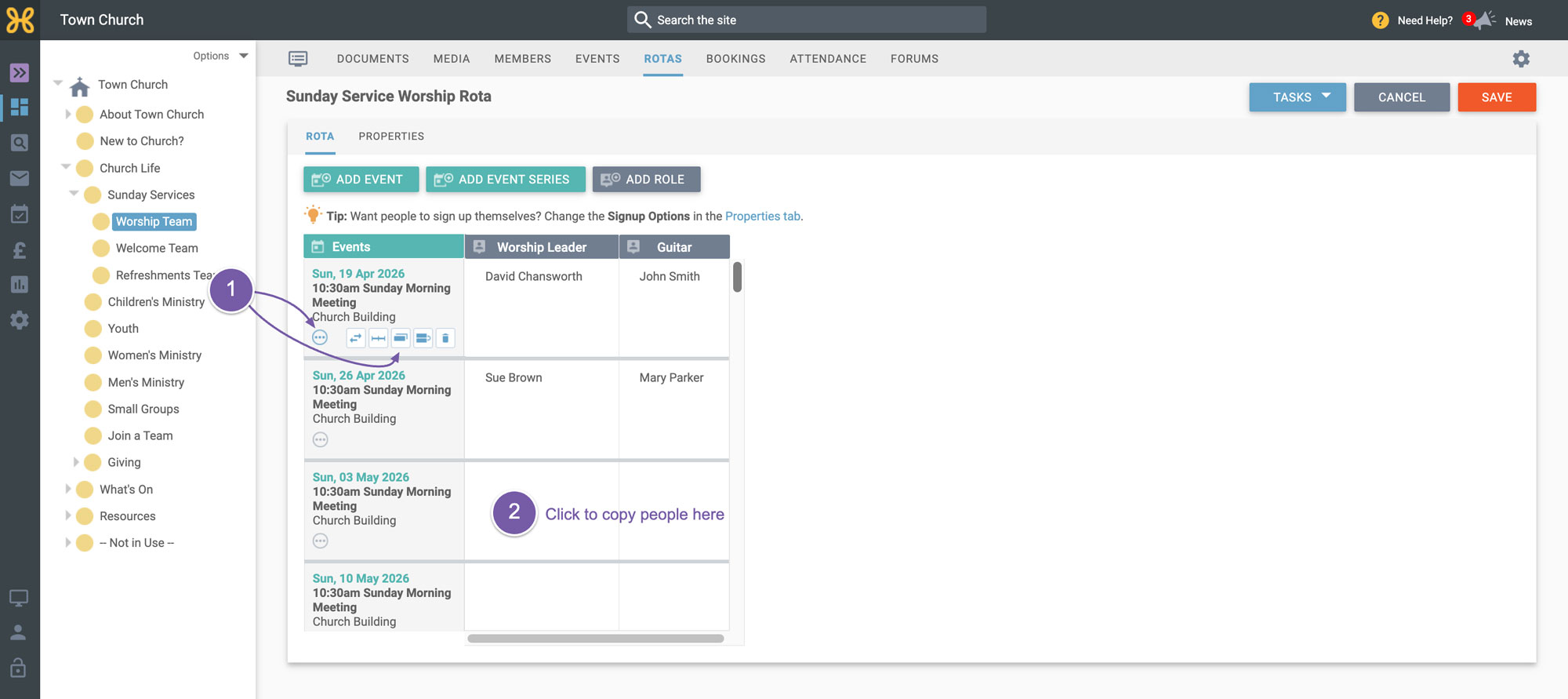
- Hover over the three option dots on the event you want to copy from.
- Select 'Copy Row'.
- Click the row you want to copy the people to.
Repeat this for each row you want to fill. The later week needs to be on the rota already, so if it isn't, add that event to the rota first.
Swap, delete or split an event
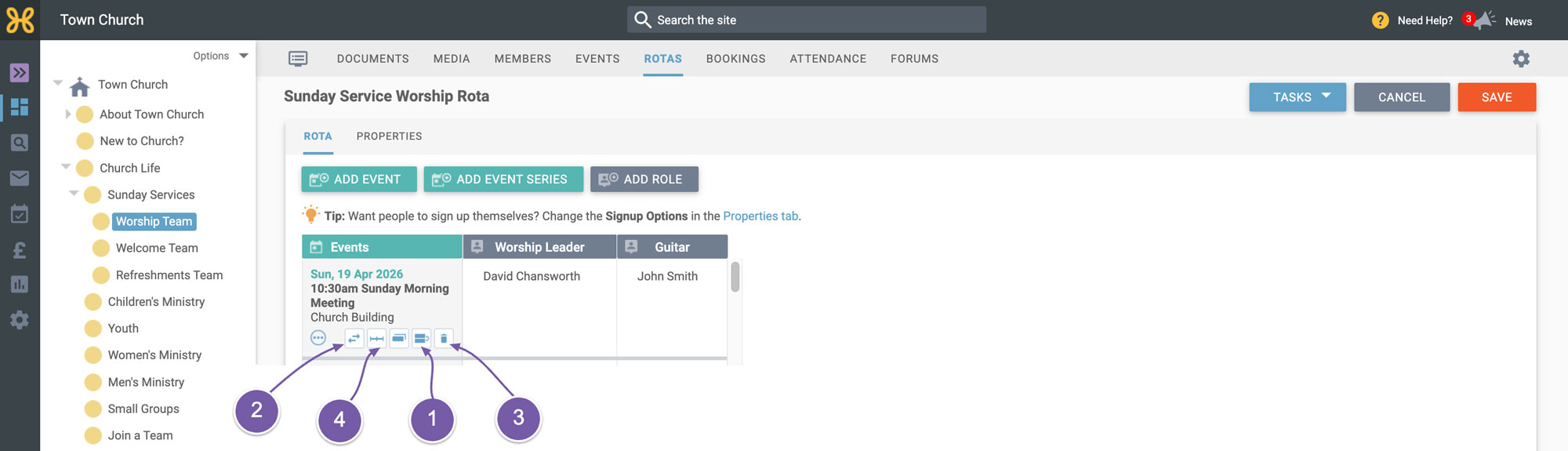
The same three dots menu also lets you:
- swap a row with another row
- swap the event for a different event
- delete the event
- split the event into slots, so different teams can serve at different times of one event, such as a morning team and an afternoon team on a community action day
Copying and swapping rows are the options people use most, and they make building a rota much quicker once your members are in the system.