Why doesn't my page look like my other pages?
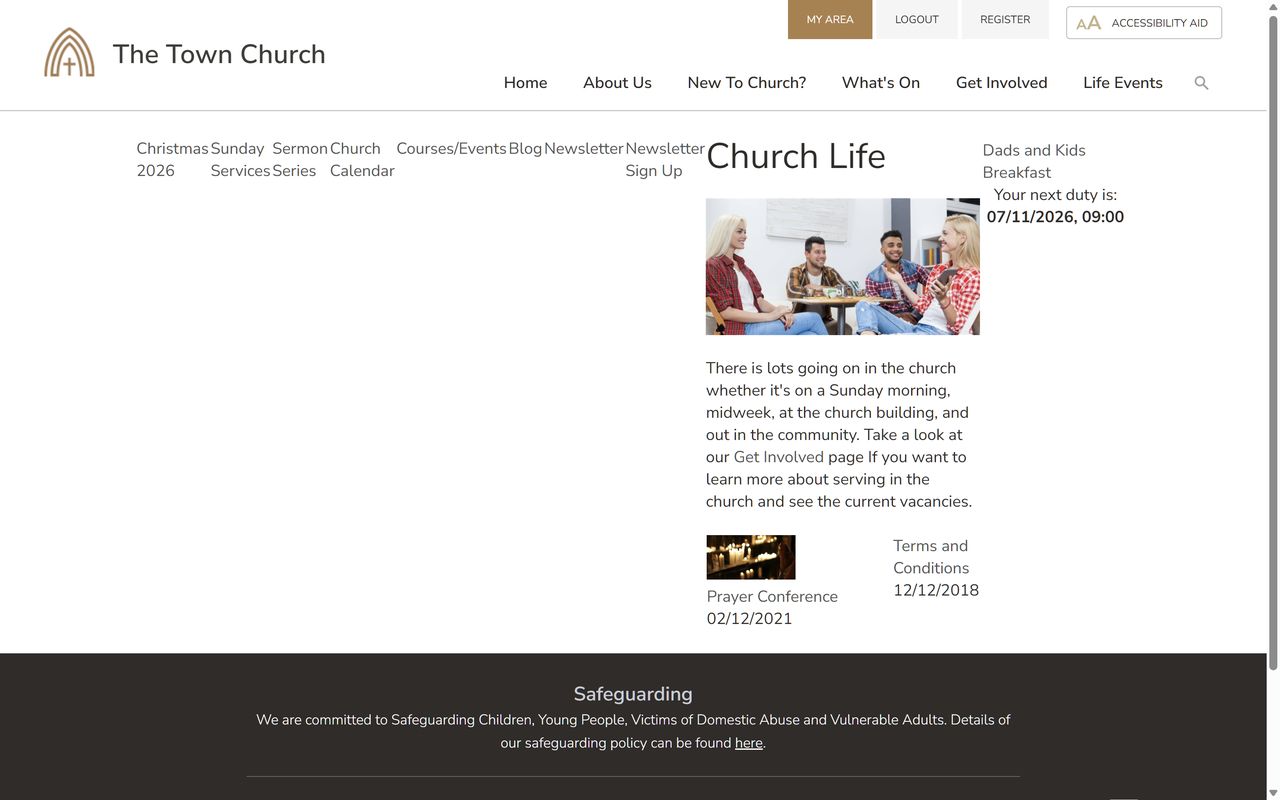
If a page in your main menu looks untidy or different from your other pages, it’s usually using your homepage template instead of your content template. You can fix it in a few clicks on the page’s Design tab.
You might see links to its sub-pages running across the top, the content squeezed into a narrow column, or the side menu missing. It often happens with a new page: until you set its template, it uses the one from your homepage.
Setting the page’s template
-
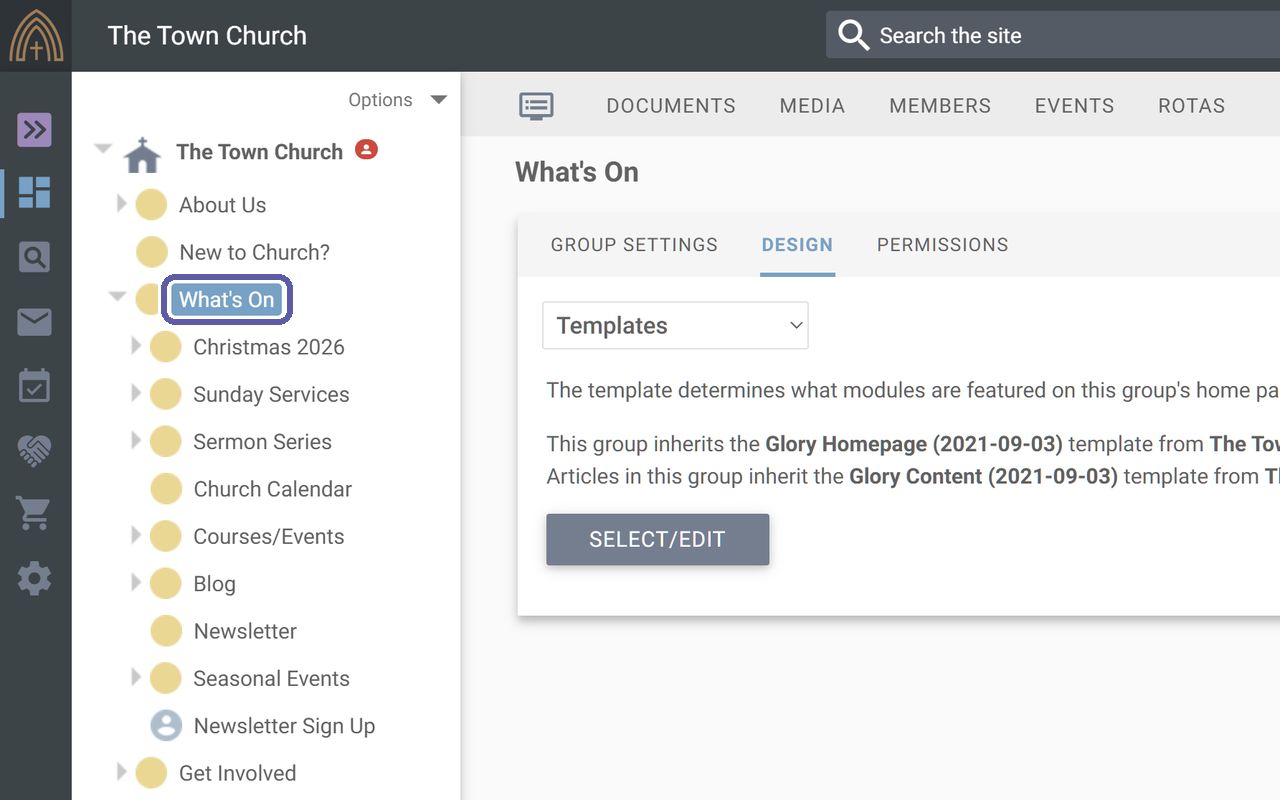
In your web office, click the page in the group structure on the left.
-
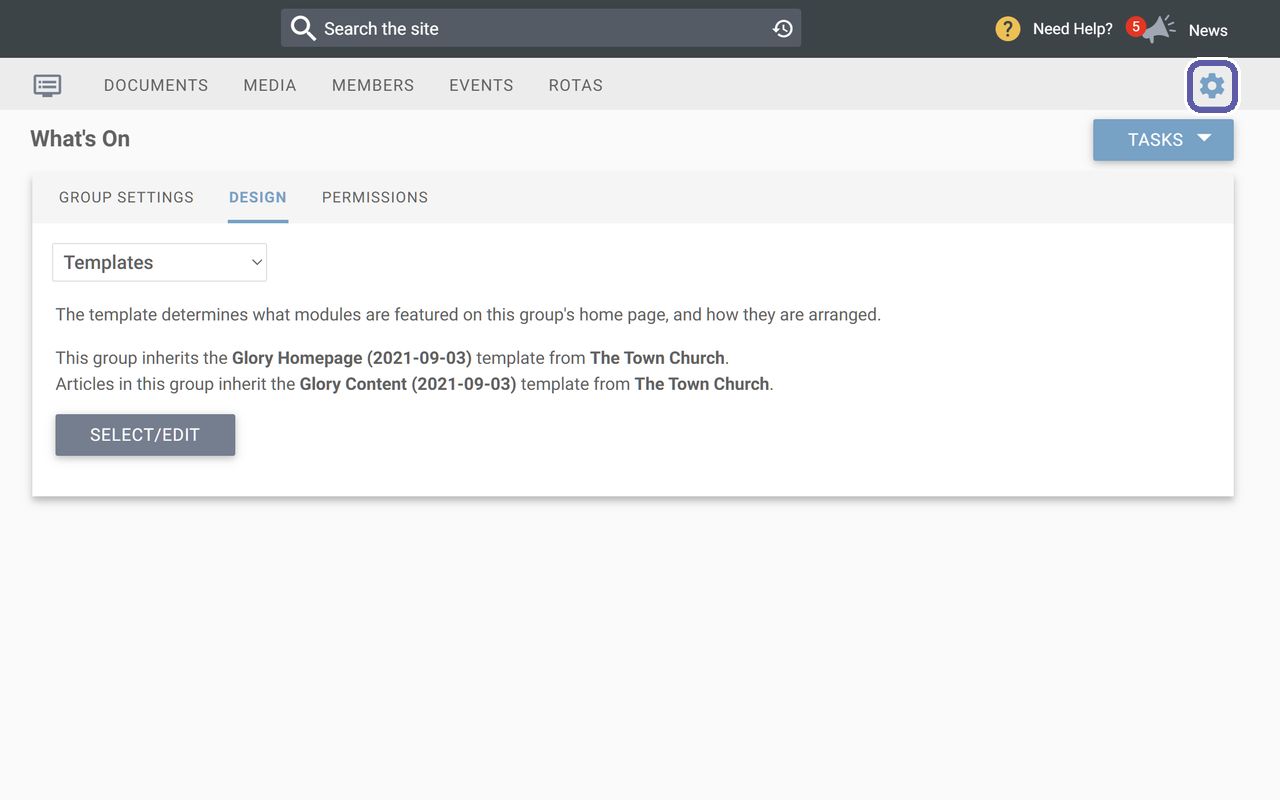
Click the settings cog near the top right.
-
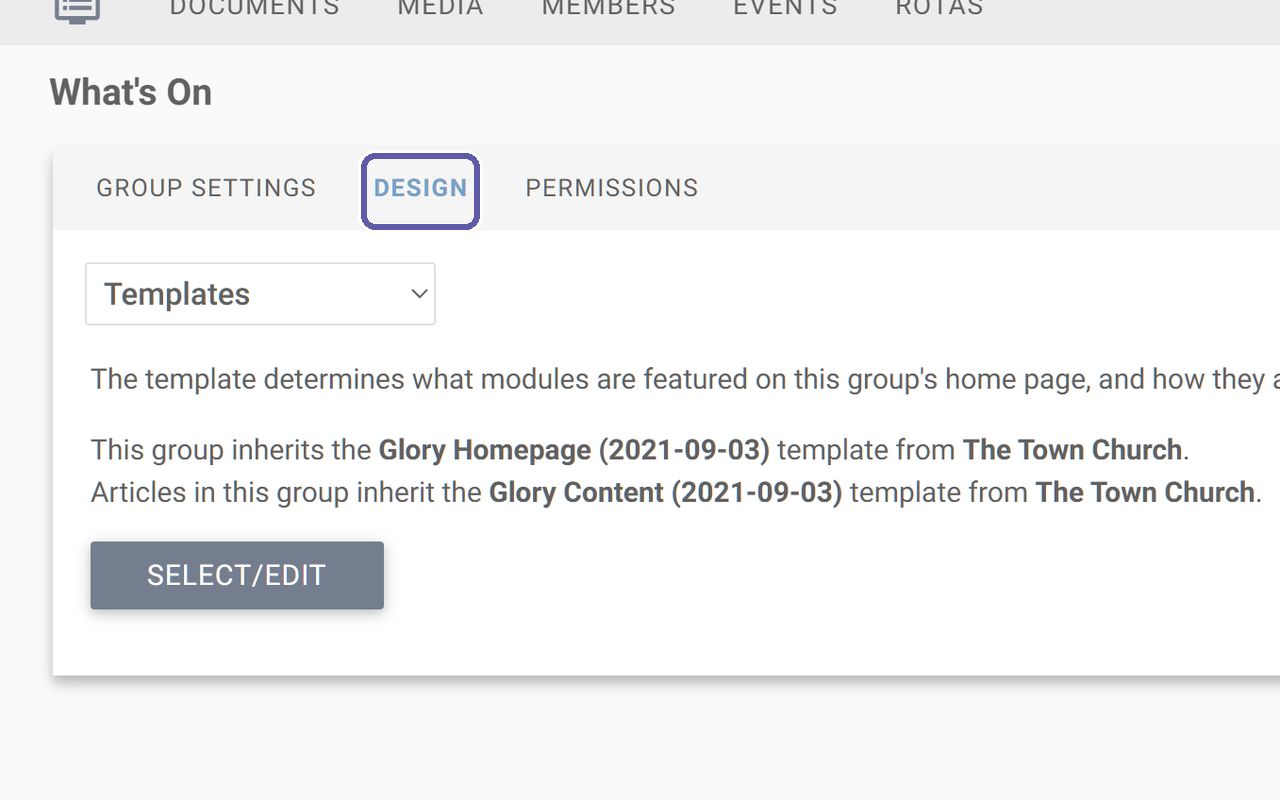
Open the Design tab.
-
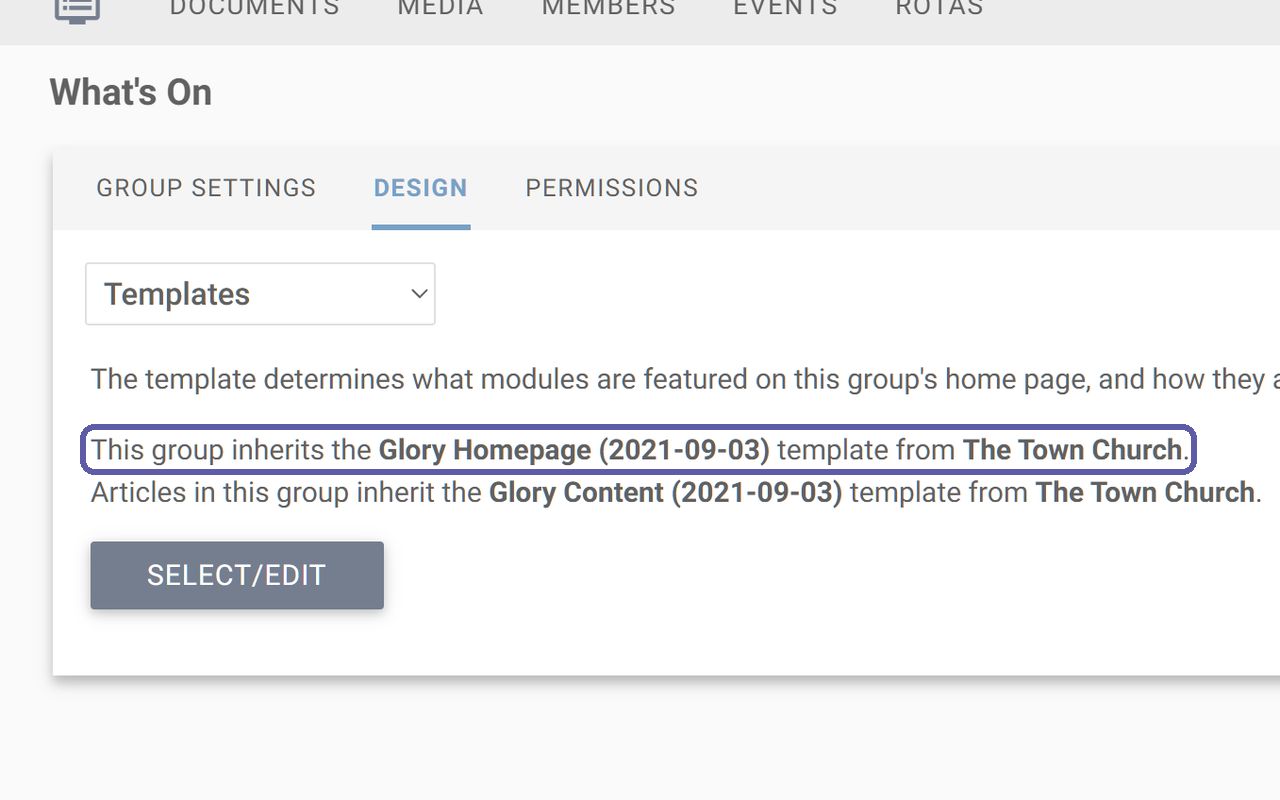
Look at the line that starts ‘This group inherits the’. If it names your homepage template, such as Glory Homepage, that’s why the page looks wrong.
-
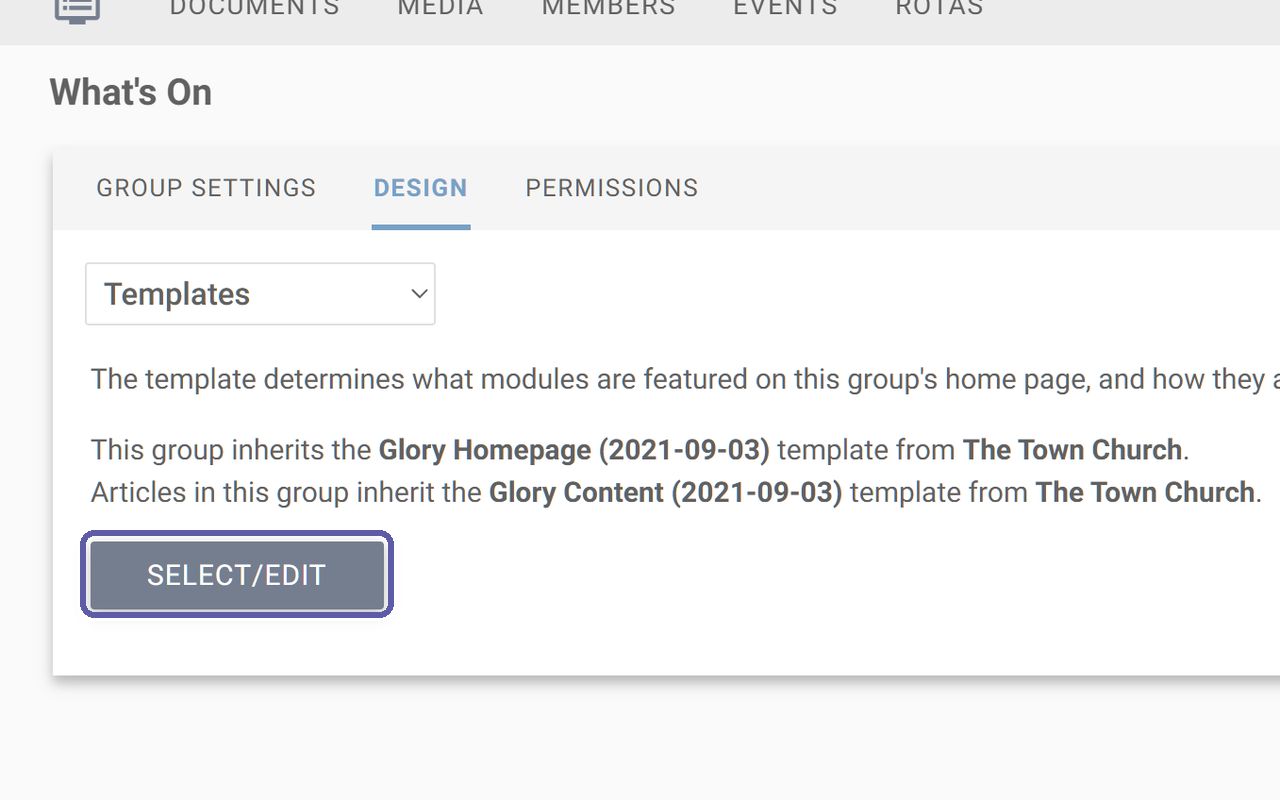
Click ‘Select/Edit’ to see your templates.
-
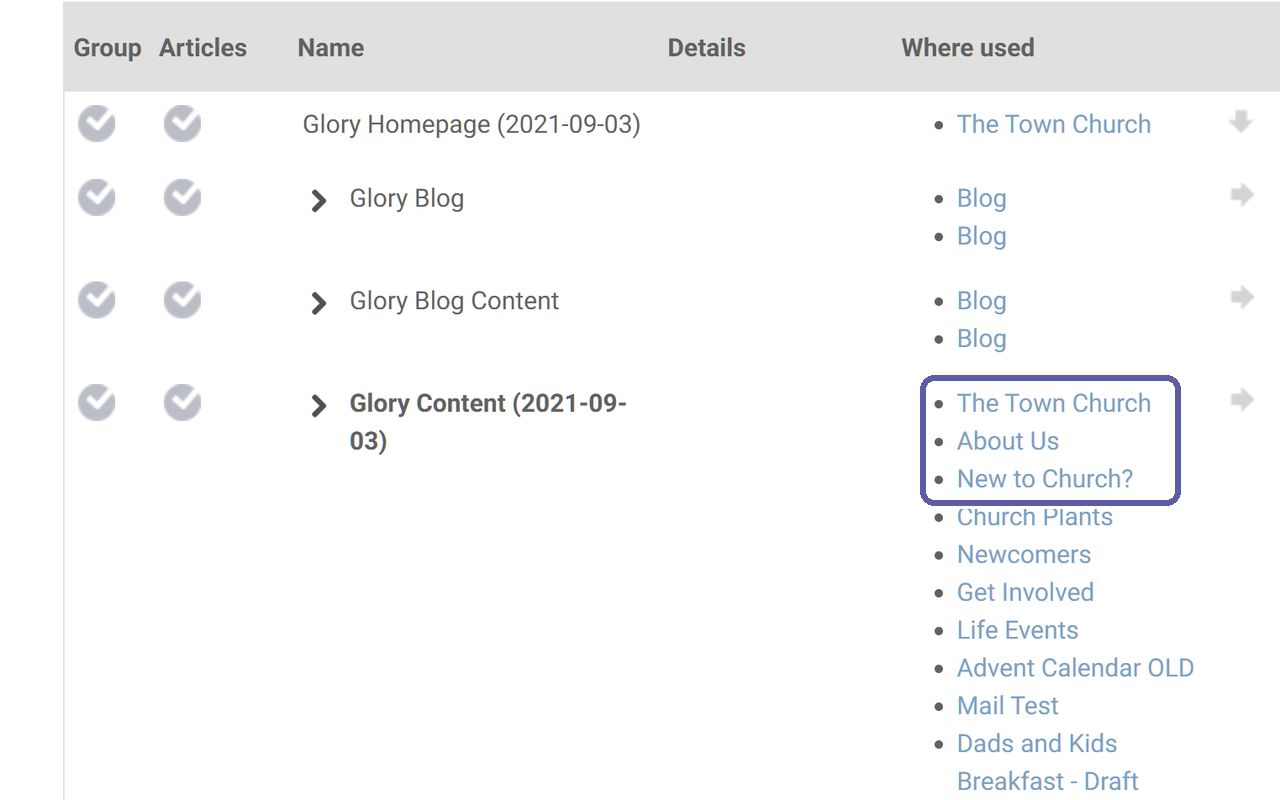
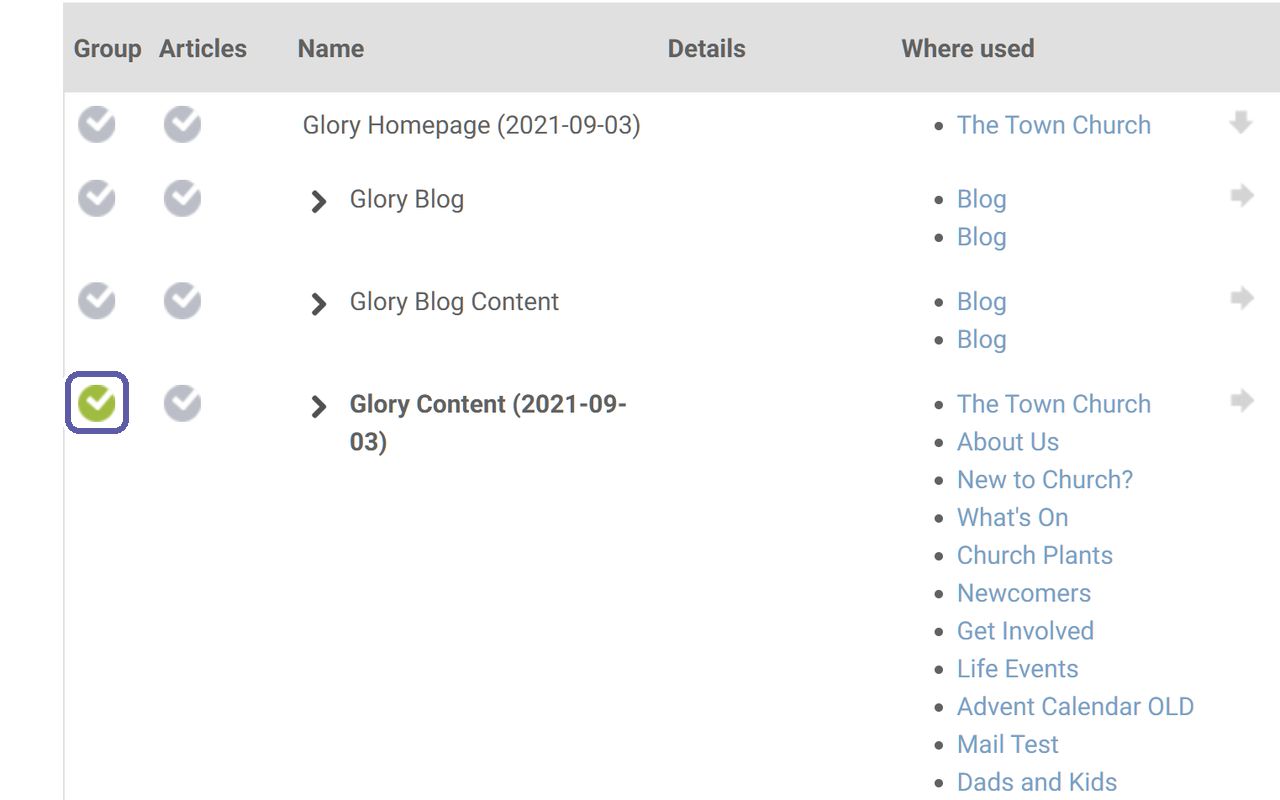
In the Where used column, find the template your other pages use, such as About Us. Its name depends on your website’s design, so go by the pages listed next to it.
-
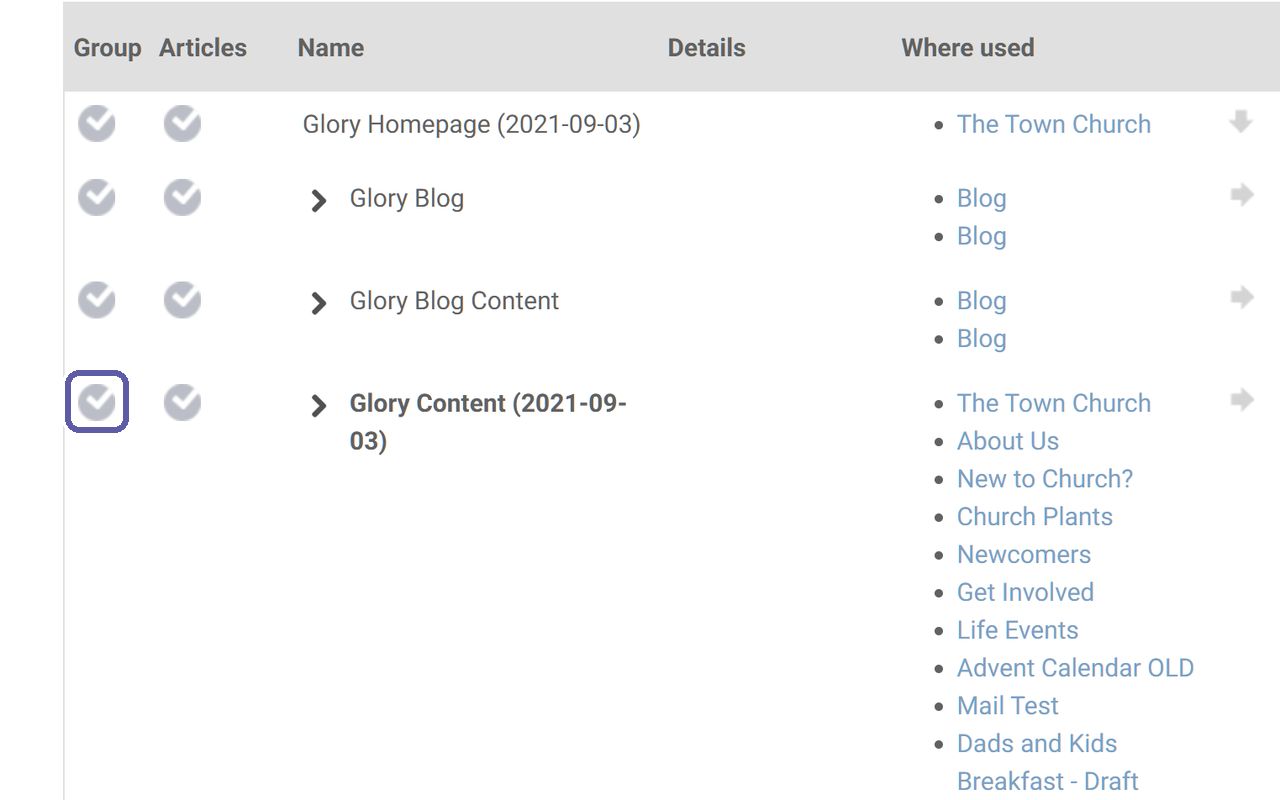
Click the tick next to it in the Group column.
-
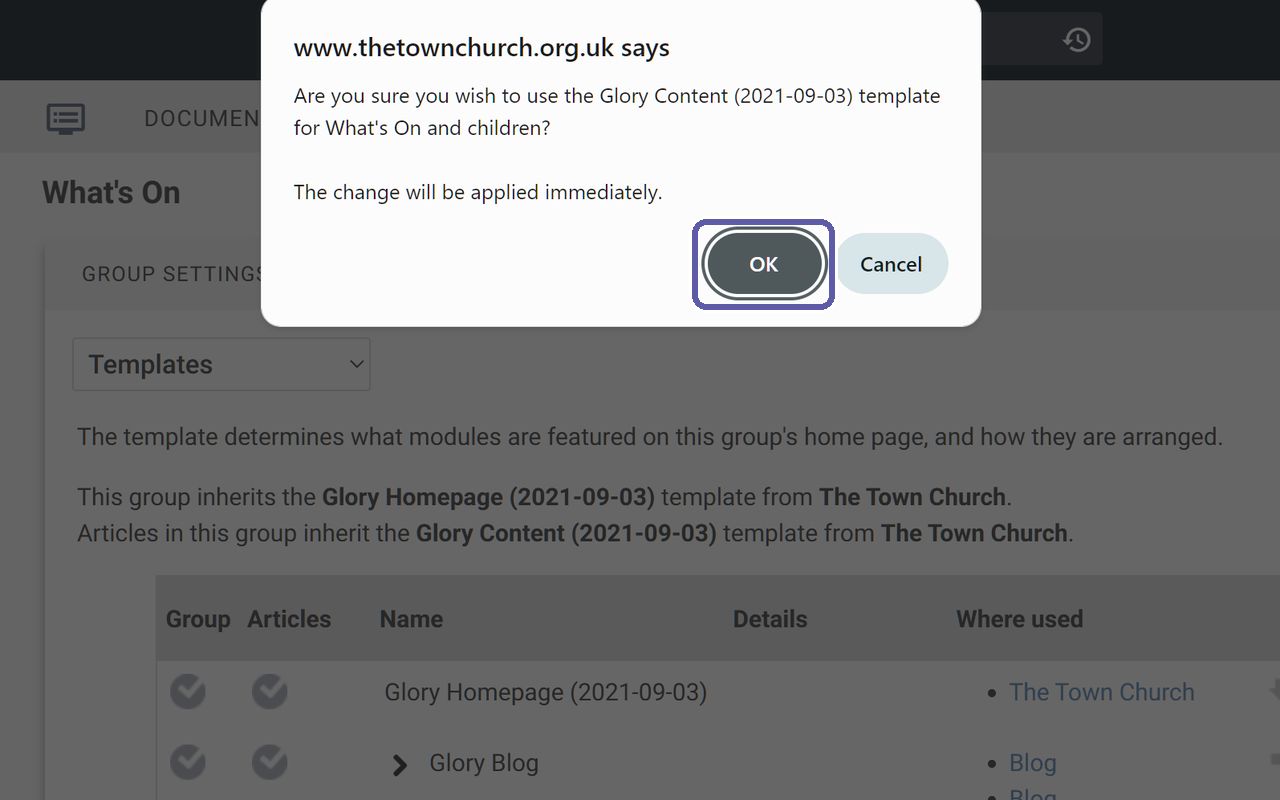
Click ‘OK’ to confirm. The change is applied straight away.
-
Check the tick in the Group column has turned green.
-
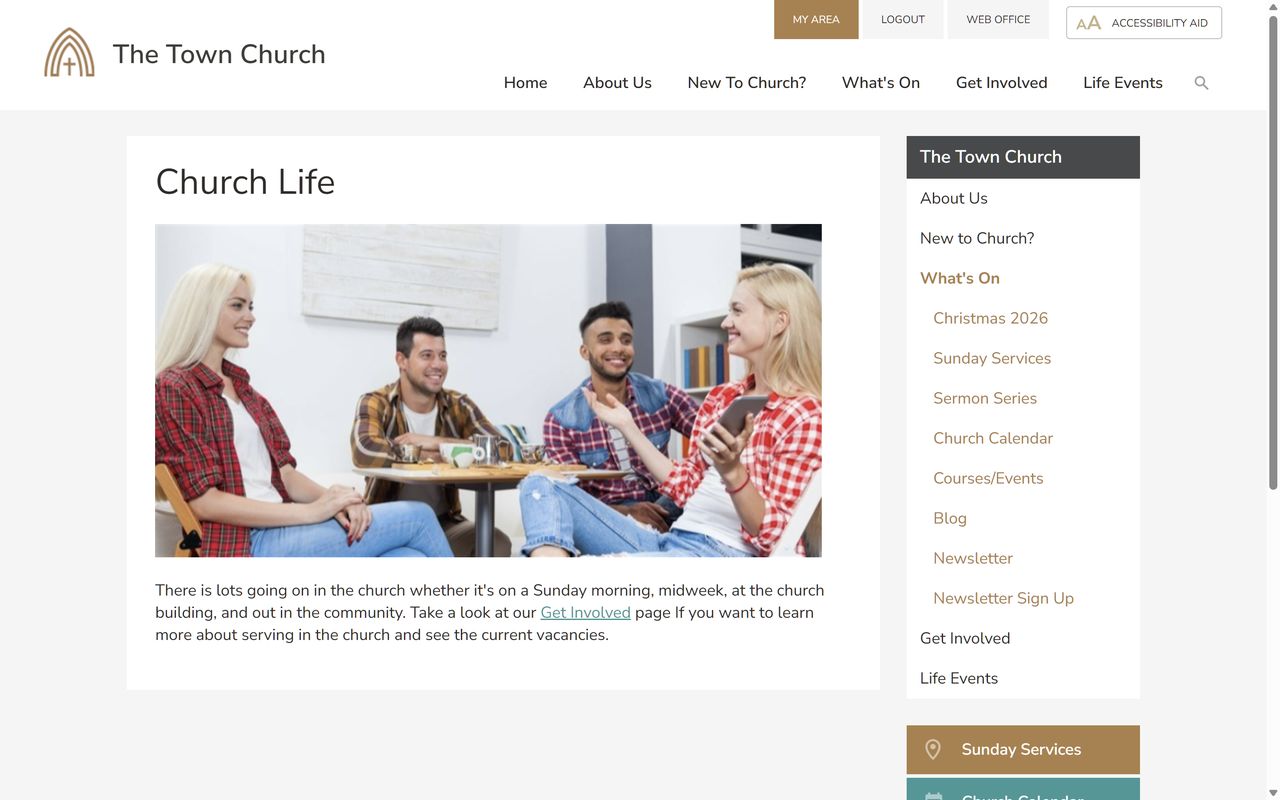
Refresh the page on your website. It should now look like your other pages.
Good to know
-
The change also applies to the pages underneath, so you’ll usually only need to set it on pages in your main menu.
-
When you add a new page to your main menu, set its template straight away so it matches your other pages.
-
The second line on the Design tab, about articles, may already name your content template. That line covers articles opened on their own. When someone clicks the page in your menu, they see the page itself, which follows the first line.
Still stuck? We’re real people.
Raise a support ticket and our UK team will get back to you.
Contact support